USB-C, Thunderbolt, PCIe: Cutting Through the Cable Chaos on Your Next Custom Build
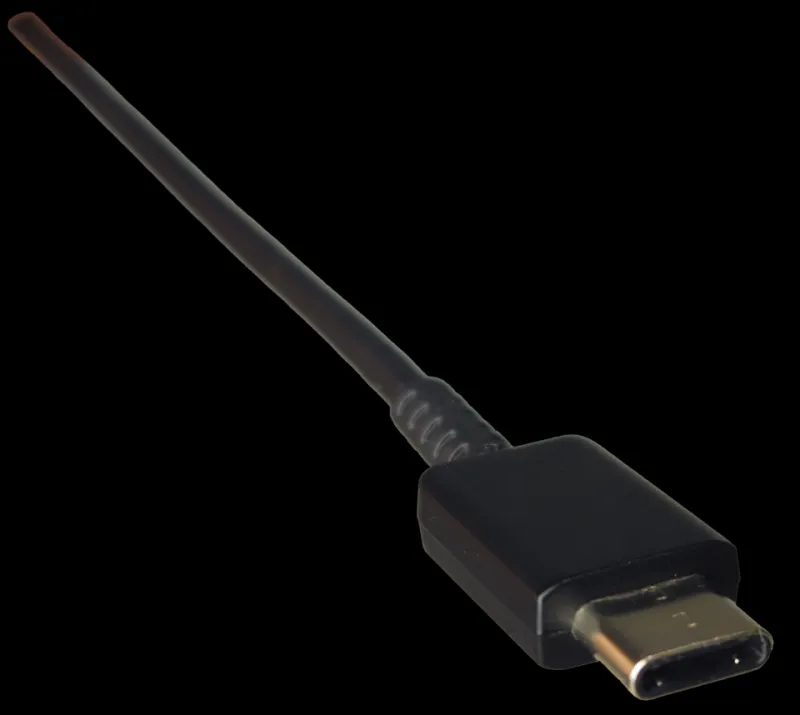
Photo: Deergirl, CC0, via Wikimedia Commons
Let's be real: the connector situation in modern computing is a mess. You can plug a USB-C cable into a port and get wildly different results depending on which USB-C port it is, which USB-C cable you're using, and which device is on the other end. Sometimes you get 10Gbps data transfer. Sometimes you get 40W of charging. Sometimes you get a 4K display output. And sometimes — infuriatingly — you get nothing at all.
If you're building custom computing setups, adding expansion to a maker project, or trying to figure out which dock or breakout board actually makes sense for your workbench, you need to understand what's happening beneath that reversible little connector. Let's break it down.
The Physical Layer: One Connector, Many Protocols
The USB-C connector itself is just a physical standard — a shape and a pinout. What travels through it is an entirely different question. This is where most of the confusion lives.
A USB-C port on your laptop might be running USB 3.2 Gen 2 (10Gbps), USB4 (up to 40Gbps), Thunderbolt 4 (also 40Gbps, but with stricter certification requirements), or even just USB 2.0 if the manufacturer was cutting corners. The port looks identical in every case. You have to read the fine print — or the tiny icon stamped next to the port, if you're lucky.
This matters enormously when you're spec'ing a build. Plugging a Thunderbolt 4 dock into a plain USB 3.2 port will technically work for basic USB functions, but you'll lose access to PCIe tunneling, the display outputs may not function, and you'll be leaving most of what you paid for on the table.
USB4: The Unifying Standard That Almost Unifies Things
USB4 was supposed to clean all this up. Released in 2019 and updated with USB4 Version 2.0 in 2022, it unified USB and Thunderbolt 3 under a single spec, offering up to 40Gbps (and 80Gbps in v2.0) over a USB-C cable. It also supports DisplayPort Alt Mode and PCIe tunneling, meaning you can run external GPUs and high-resolution displays through a single cable.
The catch: USB4 compliance is tiered, and manufacturers aren't required to implement every feature. A device can be "USB4" and still not support PCIe tunneling or 40Gbps speeds. Always check the specific feature set of any USB4 device before assuming it does what you need.
For makers building portable compute setups — think a mini PC driving multiple displays or a compact workstation with external storage — USB4 at 40Gbps is genuinely useful. Just buy from vendors who are explicit about what their implementation supports.
Thunderbolt 4 (and 5): The Premium Lane
Thunderbolt 4, developed by Intel and licensed to other chip makers, is essentially USB4 with a mandatory feature floor. Any certified Thunderbolt 4 device must support 40Gbps bandwidth, PCIe tunneling at a minimum of 32Gbps, two 4K displays or one 8K display, and USB4 backward compatibility. There's no ambiguity about the feature set — that's the point.
Thunderbolt 5, announced in 2023, pushes bandwidth to 120Gbps in certain bandwidth-boosted modes and doubles the PCIe tunneling throughput, making external GPU setups significantly more viable. If you're building a desktop replacement or a compact creative workstation where an eGPU is part of the plan, Thunderbolt 5 is worth factoring into your hardware choices.
The downside is cost. Thunderbolt certification adds to device prices, and you'll need a certified cable — not just any USB-C cable — to hit full speeds reliably. Budget accordingly.
PCIe: Still the King for Raw Throughput
For desktop builds and any setup where you're not constrained by portability, PCIe remains the gold standard. A single PCIe 4.0 x4 slot delivers around 64Gbps of bandwidth — more than Thunderbolt 5's standard mode. PCIe 5.0 doubles that again.
Where this gets interesting for makers is in PCIe expansion cards and M.2 adapters. If you're adding a high-speed NVMe array, a capture card, a 10GbE network card, or a custom FPGA board to a build, PCIe is almost certainly the right answer — assuming your platform supports it. Single-board computers and mini PCs with M.2 slots often expose PCIe through that interface, and understanding the lane count and generation of that slot determines what you can actually attach.
One common pitfall: M.2 slots can run either PCIe or SATA electrically, and the key (the notch shape) doesn't always tell you which protocol is active. An M.2 NVMe SSD in an M.2 SATA-only slot won't work, and vice versa. Check the motherboard documentation, not just the slot shape.
Practical Decision Framework for Common Project Types
Portable compute setup (laptop + peripherals): Look for USB4 at 40Gbps minimum, or Thunderbolt 4 if you need guaranteed feature support. A good Thunderbolt 4 dock gives you USB-A ports, Ethernet, display outputs, and power delivery through a single cable to your laptop — genuinely clean.
Mini PC or compact workstation: M.2 PCIe for storage is non-negotiable for performance. Check whether your platform's M.2 slots are PCIe 4.0 or 5.0, and whether any slots are shared bandwidth with the primary NVMe slot.
Maker/embedded projects needing external peripherals: USB 3.2 Gen 1 (5Gbps) is usually enough for cameras, sensors, and storage. If you're doing high-speed data acquisition or need to move large files fast, step up to Gen 2 (10Gbps). Thunderbolt is overkill for most embedded use cases.
eGPU setup: Thunderbolt 4 is the minimum; Thunderbolt 5 is better. Accept that you'll lose roughly 15–20% GPU performance versus a native PCIe slot due to tunneling overhead.
The Cable Problem You're Probably Ignoring
Here's the thing nobody talks about enough: the cable matters as much as the port. A cheap USB-C cable might physically fit and even charge your device, but it may not support the data rates or video output you're expecting. Passive Thunderbolt cables are rated up to 0.8 meters; beyond that, you need active cables that cost significantly more.
Buy cables from reputable vendors, check the spec label on the cable itself, and when in doubt, test with a known-good cable before assuming a port or device is faulty. Half the "broken" setups we've seen on maker forums were a $6 cable from a gas station checkout display.
Know your protocols, buy the right cables, and the cable chaos gets a lot more manageable.